Recently I have been working on a Maven multi module project with ear, war and ejb artifacts. It has been a pleasant experience till I got to versioning my modules. Consider a multi module project with the following structure:
Now this is where the problem starts. Since all the child modules need to have an explicit reference to the parent pom version, when it is time to do a release, we have to change the version in parent pom and all the child module poms. This can be a real pain and is very error prone. With a little help from Google, here is what I found:
Ceki on his blog suggested using a property in the parent pom to control the version numbering.
Several maven users would like “automatic parent versioning” according this improvement
Use maven release plugin which would automate the process of changing version numbers across the project
Option three seems to be the correct approach to solve this problem here. But I have heard horrible things about the release plugin and how fragile it is. I will be giving it a try soon. I still think that Maven should support automatic parent versioning as an option for users who don’t (or cannot) get to use the release plugin.
Maven Archetypes are project templates that allow users easily create new projects. Maven Archetypes are great way to share best practices and enforce consistency beyond Maven’s standard directory structure. For example, an organization can provide its developers an archetype bundled with company’s approved CSS and JavaScript libraries.
Recently, I have been creating a lot of Spring MVC based projects and each time I do, I copy a lot of information (configuration files, css files, dependency information etc) from an existing project. Following the DRY principles, I decided to create several Spring MVC based archetypes that can help me bootstrap my projects quickly. In this post I will share my experiences creating and using a new Maven Archetype.
Maven provides several ways to create a new archetype as described here. Since I have an existing Spring MVC project, I will be using the archetype:create-from-project goal.
Creating Archetype
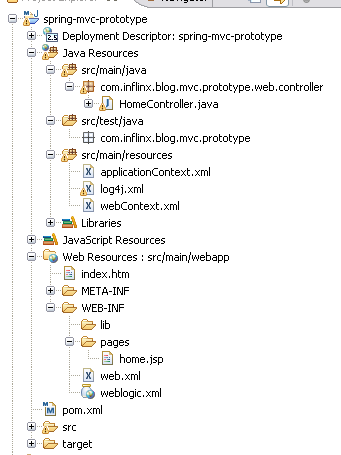
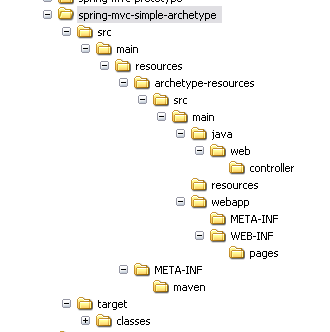
Step 1: Identify the Maven Project that would be used as prototype for the archetype. Make sure it has only the resources (configuration, properties and Java files) that you would like to be part of the archetype. It is recommended to remove IDE specific files (.project, .classpath etc) from the project directory. Here is the spring-mvc-prototype project that I will be using:
Prototype Project Layout
Step 2: Using command line, navigate to the project folder spring-mvc-prototype and run the following command:
mvn archetype:create-from-project
Upon completion of the command, you should see the message “Archetype created in target/generated-sources/archetype”. The newly created archetype is now under spring-mvc-prototype/target/generated-sources/archetype
Step 3: The next step is to move the newly created archetype into a separate folder so that it can be tweaked and published. I have moved the content inside the spring-mvc-simple-archetype folder.
Archetype Directory Structure
Step 4: Modify the artifactId in the archetype’s pom.xml located at the root of spring-mvc-simple-archetype folder.
Step 5: Modify the finalName in the resource’s pom.xml file located at spring-mvc-simple-archetypesrcmainresourcesarchetype-resources.
spring-mvc-prototype${artifactId}
During project creation, maven will replace the ${artifactId} expression with the user supplied artifactId value.
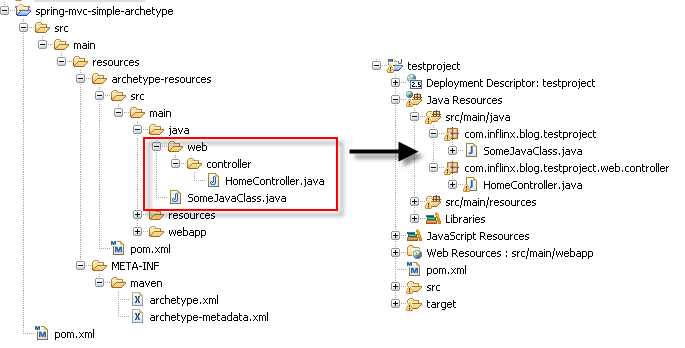
Step 6: When creating a project from an archetype, Maven prompts the user for a package name. Maven will create the package in the source folder (srcmainjava) of the project being created and will move the contents under archetype-resourcessrcmainjava into the package.
Maven File Copy
While generating the “testproject” above, the user specified the package “com.inflinx.blog.testproject”. So the SomeJavaClass.java file got moved to the root of the package and the HomeController.java got moved under the web.controller subpackage.
Step 7: The next step is to verify that the generated archetype.xml (located under src/main/resources/META-INF/maven) has all the files listed and they are located in the right directories. For example, the HomeController is located under archetype-resources/src/main/java/web/controller/HomeController.java. So there should be an entry under sources in the archetype.xml that looks something like this:
Step 8: Modify the configuration files to correctly use the ${package} variable. For example, the webContext.xml file is modified so that the controllers located under web.controller sub package are picked up:
Step 9: The final step in creating the archetype is to run the following on command line inside the folder spring-mvc-simple-archetype:
mvn clean install
Using the archetype
Once the archetype is installed, there are several ways to create a project from it.
Generate goal: Create an empty folder and run the following command:
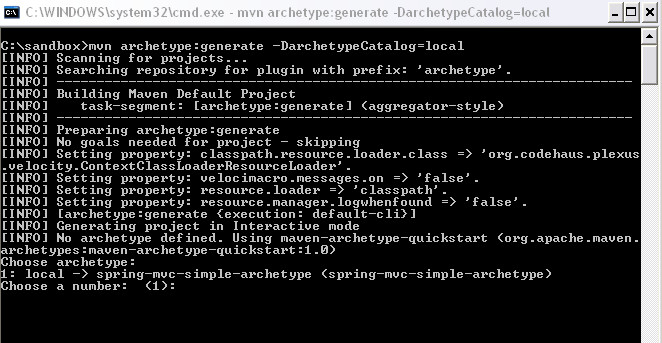
mvn archetype:generate -DarchetypeCatalog=local
This goal would scan the local catalog for archetypes and prompts the user to select an archetype to use.
Command Line Archetype Usage
Once the user enters 1, Maven selects the spring-mvc-simple-archteype for project creation.
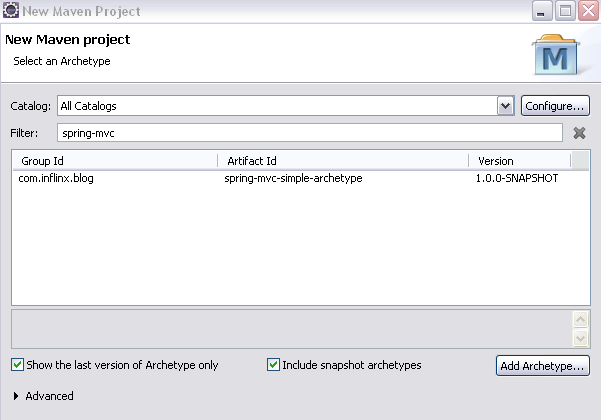
m2Eclipse Plugin: If you are an Eclipse user, use the New Project Wizard and search and select the spring-mvc-simple-archetype.
m2Eclipse Archetype Usage
Using m2Eclipse plugin is a real time saver since it creates the associated IDE specific configuration files.
Adding Custom Properties
On some projects, additional information such as user name or web application context might be needed to generate the project. Here are the steps to prompt the user for information and use it:
Step 1: Add to the archetype-metadata.xml file located under spring-mvc-simple-archetypesrcmainresourcesMETA-INFmaven a required properties entry:
Step 2: Modify the file where you would like to use the information. Below, I have modified weblogic.xml to have the context root value the user has provided:
true${contextRoot}
When the user uses the archetype with the above modifications, he will be prompted for the contextRoot.
When you create a MyEclipse Web Project with Maven capabilities, the generated directory structure does not match the “standard” Maven Web Project structure. I find this little annoying and here is what I did to change the directory structure:
Under “src” folder, create two folders main and test. Underneath each folder create two folders java and resources
Go to project properties and under Java Build Path, first remove “src” folder from being a source folder. Make java and resources folders source folders
Create webapp folder underneath src/main. Create WEB-INF and classes folders under webapp. Move the web.xml under WebRoot/WEB-INF to webapp/WEB-INF folder
In the .mymetadata file located in the project root folder (use Navigator view to get to the file in MyEclipse), change the attribute webrootdir’s value to /src/main/webapp
In the .classpath file, change the classpathentry of kind “output” from “WebRoot/WEB-INF/classes” to “src/main/webapp/WEB-INF/classes”
Delete the WebRoot directory and restart MyEclipse
The original pom.xml generated as part of the Maven4MyEclipse Web Project has several entries (sourcedirectory, resource directory e.t.c.) to reflect MyEclipse Web project directory structure. These entries can be safely deleted. Once this is done, the new project can be used to hot-deploy the war file. And yes, dependencies declared as “test” will not end up in the lib directory of the hot-deployed war file.
I have not been quite impressed with MyEclipse’s Maven4MyEclipse plugin. The most disappointing thing about this is that after checking out an existing project from source control, I cannot add Maven “capabilities” using the context menu (which could be easily done with m2eclipse).
For the last couple days, I am running into this wierd bug with the “Java Maven Wizard”: When I try to check out an existing project from SVN using: “Find/Check Out As” -> “Check Out as a project configured using the New Project Wizard” -> “Java Maven Project” into a location other than the default location provided by the wizard, the wizard still checks out the project into the default location.
Hopefully I will have some solution in the Maven4MyEclipse forum.
Update: Looks like the same issue surfaces for newly created Java Maven projects also.