Archive

Posts Tagged ‘Spring MVC’

Creating Maven Archetypes – Spring MVC Example

April 16th, 2010

Maven Archetypes are project templates that allow users easily create new projects. Maven Archetypes are great way to share best practices and enforce consistency beyond Maven’s standard directory structure. For example, an organization can provide its developers an archetype bundled with company’s approved CSS and JavaScript libraries.

Recently, I have been creating a lot of Spring MVC based projects and each time I do, I copy a lot of information (configuration files, css files, dependency information etc) from an existing project. Following the DRY principles, I decided to create several Spring MVC based archetypes that can help me bootstrap my projects quickly. In this post I will share my experiences creating and using a new Maven Archetype.

Maven provides several ways to create a new archetype as described here. Since I have an existing Spring MVC project, I will be using the archetype:create-from-project goal.


Creating Archetype

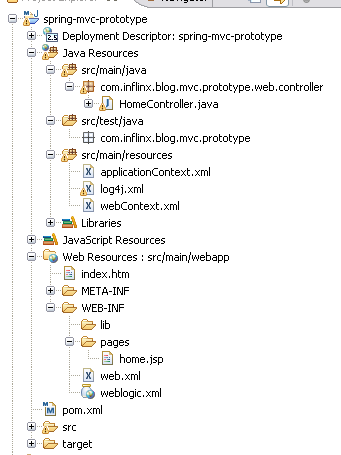
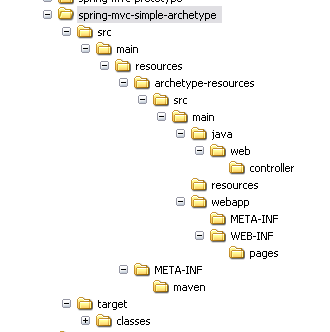
Step 1: Identify the Maven Project that would be used as prototype for the archetype. Make sure it has only the resources (configuration, properties and Java files) that you would like to be part of the archetype. It is recommended to remove IDE specific files (.project, .classpath etc) from the project directory. Here is the spring-mvc-prototype project that I will be using:

Prototype Project Layout

Prototype Project Layout

Step 2: Using command line, navigate to the project folder spring-mvc-prototype and run the following command:

	mvn archetype:create-from-project
	

Upon completion of the command, you should see the message “Archetype created in target/generated-sources/archetype”. The newly created archetype is now under spring-mvc-prototype/target/generated-sources/archetype

Step 3: The next step is to move the newly created archetype into a separate folder so that it can be tweaked and published. I have moved the content inside the spring-mvc-simple-archetype folder.

Archetype Directory Structure

Archetype Directory Structure

Step 4: Modify the artifactId in the archetype’s pom.xml located at the root of spring-mvc-simple-archetype folder.

Existing pom.xml:

  com.inflinx.blog
  spring-mvc-prototype-archetype
  1.0.0-SNAPSHOT
maven-archetype
  spring-mvc-prototype-archetype

Modified pom.xml:

	com.inflinx.blog
	spring-mvc-simple-archetype
	1.0.0-SNAPSHOT
maven-archetype
	spring-mvc-simple-archetype

Step 5: Modify the finalName in the resource’s pom.xml file located at spring-mvc-simple-archetypesrcmainresourcesarchetype-resources.

		
		spring-mvc-prototype

		
		${artifactId}
	

During project creation, maven will replace the ${artifactId} expression with the user supplied artifactId value.

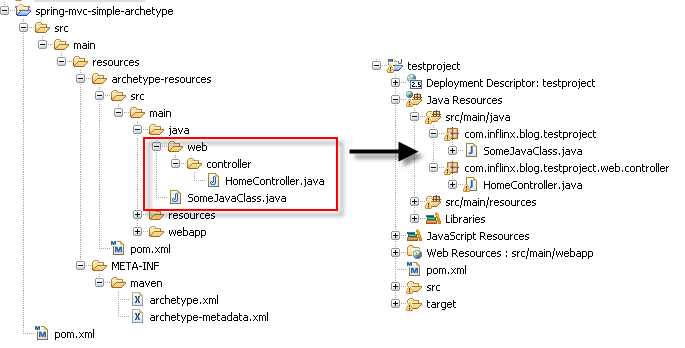
Step 6: When creating a project from an archetype, Maven prompts the user for a package name. Maven will create the package in the source folder (srcmainjava) of the project being created and will move the contents under archetype-resourcessrcmainjava into the package.

Maven File Copy

Maven File Copy

While generating the “testproject” above, the user specified the package “com.inflinx.blog.testproject”. So the SomeJavaClass.java file got moved to the root of the package and the HomeController.java got moved under the web.controller subpackage.

Step 7: The next step is to verify that the generated archetype.xml (located under src/main/resources/META-INF/maven) has all the files listed and they are located in the right directories. For example, the HomeController is located under archetype-resources/src/main/java/web/controller/HomeController.java. So there should be an entry under sources in the archetype.xml that looks something like this:

	  
	    src/main/java/com/inflinx/blog/mvcprototype/web/controller/HomeController.java
	  

Step 8: Modify the configuration files to correctly use the ${package} variable. For example, the webContext.xml file is modified so that the controllers located under web.controller sub package are picked up:


Step 9: The final step in creating the archetype is to run the following on command line inside the folder spring-mvc-simple-archetype:

	mvn clean install


Using the archetype

Once the archetype is installed, there are several ways to create a project from it.

Generate goal: Create an empty folder and run the following command:

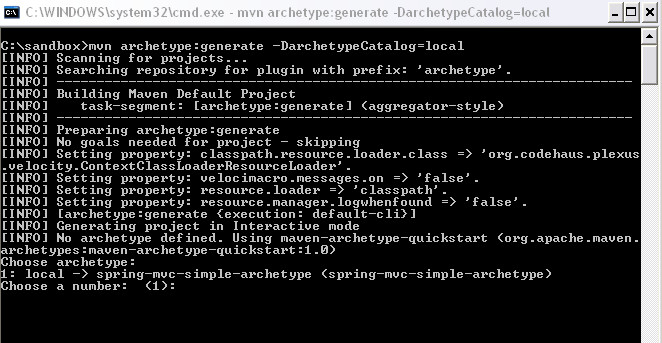
 		mvn archetype:generate -DarchetypeCatalog=local
		

This goal would scan the local catalog for archetypes and prompts the user to select an archetype to use.

Command Line Archetype Usage

Command Line Archetype Usage

Once the user enters 1, Maven selects the spring-mvc-simple-archteype for project creation.

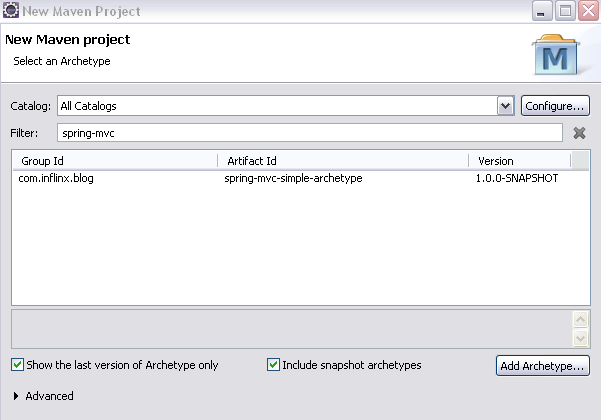
m2Eclipse Plugin: If you are an Eclipse user, use the New Project Wizard and search and select the spring-mvc-simple-archetype.

m2Eclipse Archetype Usage

m2Eclipse Archetype Usage

Using m2Eclipse plugin is a real time saver since it creates the associated IDE specific configuration files.


Adding Custom Properties

On some projects, additional information such as user name or web application context might be needed to generate the project. Here are the steps to prompt the user for information and use it:

Step 1: Add to the archetype-metadata.xml file located under spring-mvc-simple-archetypesrcmainresourcesMETA-INFmaven a required properties entry:


Step 2: Modify the file where you would like to use the information. Below, I have modified weblogic.xml to have the context root value the user has provided:


	        true
	    
		${contextRoot}
	

When the user uses the archetype with the above modifications, he will be prompted for the contextRoot.

Custom Attribute Usage In Action

Custom Attribute Usage In Action

m2Eclipse, Maven, Spring , ,

JSR 303 Bean Validation Using Spring 3

March 10th, 2010

The JSR 303 specification provides a metadata model for JavaBean validation. The validation API provides a variety of annotations that makes validation easy at any layer. In this post I will demo Spring 3′s support for JSR 303 in the web layer. You can download the code here (eclipse project).

The first part of the post talks about creating a simple bookstore admin application using Spring MVC. The second part of the post will add JSR 303 validation. If you are an experienced Spring developer, you can safely skip to the second part. The final part will show how to customize the validation error messages.

1. Online Bookstore Admin Application

The admin application will be designed to allow administrators enter information about new books. Here are the steps that implement this requirement:

Step 1. Create a web project and add all the required jars
I will be using Eclipse’s and here is a list of the required jars that need to be in the classpath:

org.springframework.asm-3.0.1.RELEASE.jar
org.springframework.beans-3.0.1.RELEASE.jar
org.springframework.context-3.0.1.RELEASE.jar
org.springframework.context.support-3.0.1.RELEASE.jar
org.springframework.core-3.0.1.RELEASE.jar
org.springframework.expression-3.0.1.RELEASE.jar
org.springframework.test-3.0.1.RELEASE.jar
org.springframework.web-3.0.1.RELEASE.jar
org.springframework.web.servlet-3.0.1.RELEASE.jar
commons-collections-3.1.jar
hibernate-validator-4.0.2.GA.jar
jcl-over-slf4j-1.5.10.jar
joda-time-1.6.jar
jstl-1.2.jar
log4j.jar
slf4j-api-1.5.8.jar
slf4j-log4j12.jar
validation-api-1.0.0.GA.jar

Step 2. Create a web-Context.xml file under WEB-INF folder to hold web layer spring bean configuration. Here are the contents of the file:


		<?xml version="1.0" encoding="UTF-8"?>
		<beans xmlns="http://www.springframework.org/schema/beans"
			xmlns:xsi="http://www.w3.org/2001/XMLSchema-instance"
			xmlns:context="http://www.springframework.org/schema/context"
			xmlns:mvc="http://www.springframework.org/schema/mvc"
			xsi:schemaLocation="
				http://www.springframework.org/schema/beans	http://www.springframework.org/schema/beans/spring-beans-3.0.xsd
				http://www.springframework.org/schema/context http://www.springframework.org/schema/context/spring-context-3.0.xsd
				http://www.springframework.org/schema/mvc http://www.springframework.org/schema/mvc/spring-mvc-3.0.xsd">

			<!-- Enable annotation driven controllers, validation etc... -->
			<mvc:annotation-driven />

			<!-- Controllers package -->
			<context:component-scan base-package="com.inflinx.blog.bookstore.web.controller" />

			<!-- JSP page location -->
			<bean class="org.springframework.web.servlet.view.InternalResourceViewResolver">
				<property name="suffix" value=".jsp"/>
			</bean>

		</beans>

Step 3. Add Spring MVC Dispatcher Servlet to web.xml file. In the declaration below, Spring MVC will handle all URL requests to html pages.


		<?xml version="1.0" encoding="UTF-8"?>
		<web-app version="2.5"
			xmlns="http://java.sun.com/xml/ns/javaee"
			xmlns:xsi="http://www.w3.org/2001/XMLSchema-instance"
			xsi:schemaLocation="http://java.sun.com/xml/ns/javaee 

http://java.sun.com/xml/ns/javaee/web-app_2_5.xsd">

		  <servlet>
				<servlet-name>bookstore</servlet-name>
				<servlet-class>org.springframework.web.servlet.DispatcherServlet</servlet-class>
				<init-param>
					<param-name>contextConfigLocation</param-name>
					<param-value>/WEB-INF/web-Context.xml</param-value>
				</init-param>
				<load-on-startup>1</load-on-startup>
			</servlet>

			<servlet-mapping>
				<servlet-name>bookstore</servlet-name>
				<url-pattern>*.html</url-pattern>
			</servlet-mapping>

		</web-app>

Step 4. Create a Book domain object to hold information about a book:

		package com.inflinx.blog.bookstore.domain;

		public class Book
		{
			private String name;
			private String description;

			public String getName()
			{
				return name;
			}
			public void setName(String name)
			{
				this.name = name;
			}
			public String getDescription()
			{
				return description;
			}
			public void setDescription(String description)
			{
				this.description = description;
			}

			@Override
			public String toString()
			{
				return "Name: " + name + ", Description: " + description ;
			}
		}
	

Step 5. Create a BookFormController to prepare the form and process form submission

		package com.inflinx.blog.bookstore.web.controller;

		import java.util.Map;

		import org.springframework.stereotype.Controller;
		import org.springframework.web.bind.annotation.RequestMapping;
		import org.springframework.web.bind.annotation.RequestMethod;

		import com.inflinx.blog.bookstore.domain.Book;

		@Controller
		@RequestMapping("/book.html")
		public class BookFormController
		{
			// Display the form on the get request
			@RequestMapping(method=RequestMethod.GET)
			public String showForm(Map model)
			{
				Book book  = new Book();
				model.put("book", book);
				return "form";
			}

		}

Step 6. Create form.jsp page with a form to capture book details:


		<%@ taglib uri="http://www.springframework.org/tags/form" prefix="form" %>
		<html>
			<head></head>
			<body>
				<form:form method="post" action="book.html" commandName="book">
					<table>
						<tr>
							<td>Name:</td> <td><form:input path="name" /></td>
						</tr>
						<tr>
							<td>Description:</td> <td><form:textarea path="description"/></td>
						</tr>
						</table>
					<input type="submit" value="Create" />
				</form:form>
			</body>
		</html>

The form will be submitted to the book.html page.

Step 7. Modify BookFormController to read the submitted data and process it.


		// Process the form.
		@RequestMapping(method=RequestMethod.POST)
		public String processForm(Book book, Map model)
		{
			// Persistence logic to save the book will go here

			// Add the saved book to the model
			model.put("book", book);
			return "result";
		}
	

Step 8. Create a result.jsp page to display the form submission result:

		<html>
			<body>
				${book.name} is stored in the database
			</body>
		</html>
	

Deploy the application and go to http://<yourserver:port>/bookstore/book.html. The page should present a form shown below:

Form

Form

Enter the book name “Test Book” and submit the form. You should see a screen that looks similar to image below:

Form Submission Result

Form Submission Result


2 Adding JSR 303 validation

Consider the following validation requirements to the book class:
a. Name and Description cannot be null or blank
b. Description cannot be more than 50 characters

Here are the steps to add the above validation requirements:

Step 1. Add @NotEmpty and @Size annotations to the name and description files of the Book class

		public class Book
		{
			@NotEmpty
			private String name;

			@Size(min=1, max=50)
			private String description;

			// Getters and setters here
		}
	

NotEmpty annotation is not part of JSR 303 specification. It is part of Hibernate Validator framework which is the reference implementation for JSR 303.

Step 2. Modify BookFormController to have Spring validate the submitted data. This is done by adding a @Valid annotation before the book method parameter. The result of the validation can be accessed using the BindingResult method parameter.

		// Process the form.
		@RequestMapping(method=RequestMethod.POST)
		public String processForm(@Valid Book book, BindingResult result, Map model)
		{
			if(result.hasErrors())
			{
				return "form";
			}
			// Persistence logic to save the book will go here

			// Add the saved book to the model
			model.put("book", book);
			return "result";
		}
 	

Step 3. Modify the form.jsp so that error messages can be displayed:

 		<form:form method="post" action="book.html" commandName="book">
					<table>
						<tr>
							<td>Name:</td> <td><form:input path="name" /></td> <td><form:errors path="name" /></td>
						</tr>
						<tr>
							<td>Description:</td> <td><form:textarea path="description"/></td> <td><form:errors path="description" /></td>
						</tr>
						</table>
					<input type="submit" value="Create" />
		</form:form>
 	

Redeploy the application and when you submit an empty form, you should see validation failure messages next to the fields:

Validation Failed

Validation Failed


3 Customizing error messages

The validation failure messages in the image above are default to the framework. To make custom error messages appear follow these steps:

Step 1. Create a messages.properties file under the WEB-INF folder. Add the following messages:

   		NotEmpty.book.name=Name is a required field
		Size.book.description=Description must be between 1 and 50 characters
   	

Each message above follows this convention:

<CONSTRAINT_NAME>.<COMMAND_NAME>.<FIELD_NAME>

Step 2. Let Spring know about the newly created properties file. This is done by modifying the web-Context.xml file to include this bean declaration:


Redeploy the application and submit an empty form. This time you should see custom error messages appear next to the fields:

Custom Validation Failed Messages

Custom Validation Failed Messages


Download the source code for this post here. The application is tested on Glassfish 3.0 and WebLogic 10.3.


Solutions Log, Spring , ,

Theming Websites using Spring MVC

October 8th, 2009

Many websites today allow their users to theme or change the look and feel of their sites. Gmail for example, currently provides over 34 themes to skin the mail interface. Themes can make websites more interactive and put the user in the driver seat when it comes to experiencing the site.

Conceptually, a theme is a collection of static resources such as stylesheets and images. When a user picks a theme, the theme’s styles and images dynamically gets associated with the site. In this post, I will create a simple Spring MVC Web application and show how Spring MVC can be used to manage theme resources easily. If you have used Spring MVC quite a bit, you can safely skip to Step 5.

Step 1: The first step in the process is to create a Spring MVC web project. Following maven conventions, here is the directory structure of the project:

Spring MVC Theme Project Structure

Spring MVC Theme Project Structure

Step 2: The next step is to add the required jars. Here is the dependency list that needs to be added to the pom.xml file:

		<dependencies>
			<dependency>
			    <groupId>org.springframework</groupId>
			    <artifactId>spring-webmvc</artifactId>
			    <version>2.5.6.SEC01</version>
			    <scope>compile</scope>
        		</dependency>	

			<dependency>
				<groupId>log4j</groupId>
				<artifactId>log4j</artifactId>
				<version>1.2.14</version>
				<scope>compile</scope>
			</dependency>
		</dependencies>
	

This would add the following jars to the project:

Spring MVC Theme Jars

Spring MVC Theme Jars

Step 3: The next step is to add Spring “goodness” to the project. This is done by adding Spring MVC dispatcher servlet definition to web.xml:

		<!-- Spring MVC Servlet -->
		<servlet>
			<servlet-name>springthemes</servlet-name>
			<servlet-class>org.springframework.web.servlet.DispatcherServlet</servlet-class>
			<load-on-startup>1</load-on-startup>
		</servlet>

		<servlet-mapping>
			<servlet-name>springthemes</servlet-name>
			<url-pattern>*.html</url-pattern>
		</servlet-mapping>
	

The Spring MVC Dispatcher Servlet by default looks for the <context-name>-servlet.xml file for Web Tier bean definitions. Create a file called springthemes-servlet.xml under WEB-INF folder with the following information:

<?xml version="1.0" encoding="UTF-8"?>
<beans xmlns="http://www.springframework.org/schema/beans" xmlns:xsi="http://www.w3.org/2001/XMLSchema-instance"
		xmlns:p="http://www.springframework.org/schema/p" xmlns:context="http://www.springframework.org/schema/context"
		xsi:schemaLocation="http://www.springframework.org/schema/beans http://www.springframework.org/schema/beans/spring-beans-2.5.xsd
				http://www.springframework.org/schema/context http://www.springframework.org/schema/context/spring-context-2.5.xsd">

	<!-- Scan for controllers -->
	<context:component-scan base-package="com.inflinx.blog.springthemes.web.controller" />

	<!-- Views are jsp pages defined directly in the root -->
	<bean class="org.springframework.web.servlet.view.InternalResourceViewResolver" p:suffix=".jsp"/>

</beans>

Step 4: To keep things simple, create a controller class called HomeController that simply redirects to the home.jsp page. Here is the HomeController class definition:

	package com.inflinx.blog.springthemes.web.controller;

	import org.springframework.stereotype.Controller;
	import org.springframework.web.bind.annotation.RequestMapping;
	import org.springframework.web.bind.annotation.RequestMethod;

	@Controller
	@RequestMapping("/home.html")
	public class HomeController
	{
		@RequestMapping(method = RequestMethod.GET)
		public String showHome()
		{
			return "home";
		}
	}

Here is the home.jsp file:

<html>
	<head>
		<title>Welcome to Spring Themes</title>
	</head>

	<body>
		Hello Visitor!!
	</body>
</html>

If you deploy the application and hit http://<server:port>/springthemes/home.html, you should see a page that looks like this:

Spring MVC Theme Default Page

Spring MVC Theme Default Page

Now that we are successfull in creating a simple Spring MVC project, lets add two themes to it – dark theme and bright theme. The site automatically gets the “dark” theme during nights and the “bright” theme during day time.

Step 5: In this step, lets create the css files (one of the many static resources that a theme can have) associated with each theme. Here are the css files (I placed them under the themes folder):

dark.css

	body {
		font-size:13px;
		text-align:center;
		color: white;
		background-color: black
	}

bright.css

	body {
		font-size:9px;
		text-align:center;
		color: blue;
		background-color: white;
}

Step 6: The next step is to define the themes. The default way to do this in Spring MVC is to use one property file for each theme. Here are the two theme definitions:

#dark theme properties file dark.properties
css=themes/dark.css
page.title=Welcome to Dark Theme
welcome.message=Hello Visitor!! Have a Good night!!

#bright theme properties file bright.properties
css=themes/bright.css
page.title=Welcome to Bright Theme
welcome.message=Hello Visitor!! Have a Good day!!

Step 7: Now that we have defined the themes, we need to tell Spring where to find them. This is done using a ThemeSource. Add the following line to the springthemes-servlet.xml file:


Step 8: Spring needs to know what theme to use when a request is made. This is done using a ThemeResolver. Spring provides three theme resolvers out of the box: FixedThemeResolver, SessionThemeResolver, CookieThemeResolver that are sufficient for most use cases. However, our site needs to inherit a theme based on the time, we will create a new theme resolver called DarkAndBrightThemeResolver:

package com.inflinx.blog.springthemes.web.resolver;

import java.util.Random;
import javax.servlet.http.HttpServletRequest;
import javax.servlet.http.HttpServletResponse;
import org.springframework.web.servlet.theme.AbstractThemeResolver;

public class DarkAndBrightThemeResolver extends AbstractThemeResolver
{
	@Override
	public String resolveThemeName(HttpServletRequest arg0)
	{
		return isNight() ? "dark" : "bright";
	}

	// Pretty lame implementation
	private boolean isNight()
	{
		return new Random().nextBoolean();
	}

	@Override
	public void setThemeName(HttpServletRequest arg0, HttpServletResponse arg1, String arg2)
	{
	}
}

Add the newly created theme resolver definition to the springthemes-servlet.xml file:


Step 9: The final step is use modify the view to use the theme. This is done using tag. Make the following changes to home.jsp page:

  <%@ taglib prefix="spring" uri="http://www.springframework.org/tags"%>
  <html>
  	<head>
  		<link  rel="stylesheet" href='<spring:theme code="css"/>' type="text/css" />
  		<title><spring:theme code="page.title"/></title>
  	</head>
  	<body>
  		<spring:theme code="welcome.message" />
  	</body>
  </html>

Now, redeploy the application and as you refresh the URL, you should randomly see the site switch between the two themes. Here is the site with the two themes:

Dark Theme

Dark Theme


Bright Theme

Bright Theme

Spring ,